Cut, Copy, and Paste work the same way from within Full Page view on the TI-Nspire as they do within other views. To cut or copy text, a mathematical expression, and so on, hold down the Shift key and press the Touchpad arrow keys until you select what you want.
Press [CTRL][X] to cut the selected region (or [CTRL][C] to copy) and save it to the Clipboard. Then use Paste ([CTRL][V]) either in the same page or a different page. The second and third screens show the result of copying and pasting text.
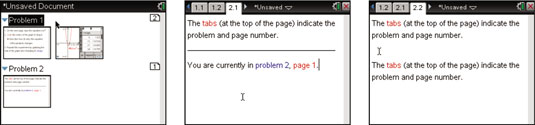
Pressing [CTRL][K] from within Full Page view, followed by [CTRL][C] and [CTRL][V], splits the page vertically and inserts a copy of the entire page side by side with the original page.
Perhaps you want to copy an entire page and paste the copy to a new page, all from within Full Page view. To accomplish this, follow these steps:
Press [CTRL][K] from within Full Page view to select the entire page.
Press [CTRL][I] to insert a new page.
Press [ESC] to remove the prompt for choosing an application, revealing Press Menu in the center of the screen.
Press [CTRL][V] to paste the copied page.