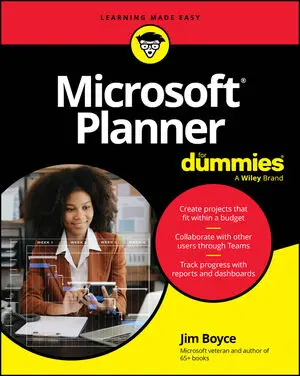
Microsoft Planner For Dummies Cheat Sheet


Microsoft Planner integrates powerful project planning tools in an easy-to-use interface that you can access from a web browser or in Microsoft Teams. It also integrates with other Microsoft tools like Microsoft Outlook and Microsoft To Do. Whether you’re new to Microsoft Planner or looking to get the most out of the premium features included in Planner’s premium subscriptions, these shortcuts and tips will help you get up to speed quickly.
How to get the right subscription
Microsoft offers four versions of Microsoft Planner that build on one another, starting with a basic version and topping out at a full-featured Enterprise project planning solution:
- Planner Basic: The basic version offers a nice set of project planning and task management tools and is suitable for personal projects and smaller team projects. It includes the ability to assign tasks to others and track progress through various views and charts.
- Planner Plan 1: This version is well suited to more complex projects in smaller organizations or for breaking up larger enterprise project plans into smaller team plans. It adds lots of premium features like the ability to track goals, create finish-to-start task dependencies (one task must finish before the next starts), view project timeline with Timeline view, work with backlogs and milestones, and use sprints for projects based on the Agile model. You can add a Microsoft 365 Copilot license to let Microsoft’s Project Manager agent to perform all kinds of actions, including actually executing tasks in the plan.
- Planner and Project Plan 3: This version adds task history and auditing; lets you create a road map of plans; and lets you view timelines, key dates, and plan deliverables across multiple plans. It adds more features for baselines and critical paths, resource request capabilities, enhanced management of multiples plans in a portfolio, advanced dependency types with lead and lag times, and access to Project Online (the web version of Project) and the Project desktop app. Note that Project Online is scheduled for retirement in September 2026.
- Planner and Project Plan 5: This version includes everything in the other three subscriptions and builds on those versions with advanced portfolio management features like reporting that spans all projects, enhanced analytical capabilities, and scenario modeling to analyze return on investment (ROI) and growth based on a variety of factors. It also provides enhanced tools for resource management across portfolios and the entire organization.
Which version of Planner you have access to depends on which license you have. Most Microsoft 365 licenses include Planner Basic, including the following:
- Microsoft 365 Business Standard
- Microsoft 365 Business Premium
- Microsoft 365 Enterprise E1, E3, and E5
- Microsoft 365 Education A3 and A5
- Government Community Cloud (GCC) plans
The three premium subscriptions — Planner Plan 1, Planner and Project Plan 3, and Planner and Project Plan 5 — are add-on subscriptions. The subscriptions are not additive — if you buy the Planner and Project Plan 5 subscription, for example, you get all the capabilities offered in the other subscriptions, as well as those features that are specific to Planner and Project Plan 5.
Let Microsoft 365 Copilot work for you
Copilot is Microsoft’s suite of artificial intelligence (AI)–powered assistants that are integrated into many of its Microsoft 365 applications. Microsoft Planner premium plans, which you can create and manage using Planner Plan 1, Planner and Project Plan 3, and Planner and Project Plan 5 subscriptions, can integrate with Copilot if you have an appropriate Copilot license. You’ll find relevant Copilot licensing information at https://learn.microsoft.com/en-us/copilot/microsoft-365/microsoft-365-copilot-licensing.
After your Copilot license is activated for your account, you’ll find a Project Manager agent icon in Planner. This agent is the tool you use to leverage Copilot in Planner. You’re probably familiar with AI tools like Copilot, ChatGPT, and others, but Copilot’s integration into Planner can be incredibly useful. Here are some of the actions that the Project Manager agent can perform for you:
- Creating tasks from goals: Create a set of key, high-level goals in a plan; then let Project Manager agent create the tasks needed to reach those goals. The agent can integrate resources from the internet, your organizational data, and supporting information that you provide through documents and other files to create relevant and detailed tasks for each goal.
- Executing tasks: You can assign tasks to the Project Manager agent and have it complete those tasks for you automatically. Tasks that require data analysis, research, creating documentation, and similar activities are great examples where Project Manager agent can save you many hours of work.
- Answering questions about your project: You can use natural language prompts to have the agent analyze your plan to answer questions about status, challenges, risks, critical path items, and much more.
- Creating detailed reports: You can use natural language prompts to have Project Manager agent create detailed reports complete with executive summaries, tables, charts, supporting documentation, and more. You can use those reports within your team and optionally publish them through SharePoint for others to view.
- Storing task information and reports in Microsoft Loop: Loop is a Microsoft collaboration platform that combines components, pages, and workspaces to enable people to easily share and access documents, notes, and other items. The Project Manager agent creates task summaries as Loop pages, and you can view and modify the pages through SharePoint or Loop. This capability enables you and your team to work with the data in multiple places and still have it all synchronized. You can easily have Planner regenerate its summaries to integrate new resources, plan updates, task completion status, and more, all with one mouse click.
10 tips for using Microsoft Planner effectively
At first glance, Planner seems like a simple program, but there’s a lot of power hiding behind that simple interface. Like any application, however, it’s important to give Planner good data to work with. It’s also important that you find ways to ensure consistency and clarity across your project plans, particularly when collaborating with others. Here are some tips to keep in mind that will help you get the most out of Planner:
- At the start of every project—even small ones—gather the team to define clear goals, desired outcomes, deliverables, and processes for the project. Clearly and completely document these and store them in the group’s SharePoint site.
- Leverage Planner’s analytics and reporting to track project status daily, particularly for sprint-based plans. Use Planner’s reporting capabilities to build stakeholder reports and team reports that offer clear current state and actionable information.
- Be clear and deliberate when creating tasks and capturing information. For example, use custom choice fields in tasks to constrain task assignees to selecting from predefined options instead of using free-form text fields.
- Create checklists in your tasks to capture the key steps needed or to define key requirements that must be met for the task to be completed successfully.
- Customize labels for your tasks to add visual clarity to your plan, categorizing work types, highlighting priorities, identifying roles and responsibilities, adding custom status indicators, or visually marking tasks in other ways.
- Use templates to save time and build in project-specific structure to your plans. Planner offers basic, premium, and Project Manager agent templates that enable you to quickly build plans for specific use cases like event planning, software development, customer support, business plan development, marketing campaigns, customer acquisition, employee onboarding, and more.
- To create your own templates, start a plan from an applicable template; add goals, buckets, common tasks, and other structure; then save the plan for use with similar projects. When building a plan, add reasonable durations for each task, sequence the tasks in loose priority by arranging them first to last in Grid view, and then build task dependencies between tasks using drag-and-drop in Timeline view. (This capability requires a premium subscription.)
- Build a good strategy that leverages Teams, SharePoint, Loop, and Planner to provide a common framework for your projects that facilitates team collaboration and ensures consistency from one project to the next.
- Use Planner’s portfolio management capabilities to simplify the task of working with and managing multiple projects, reporting across teams, and establishing clear line of sight to project status, goals, risks, and successes across your organization. Leverage Project Manager agent to gain deep understanding across your portfolio.
About This Article
This article can be found in the category:
Hot off the press
Explore Related content