|
Published:
November 24, 2026

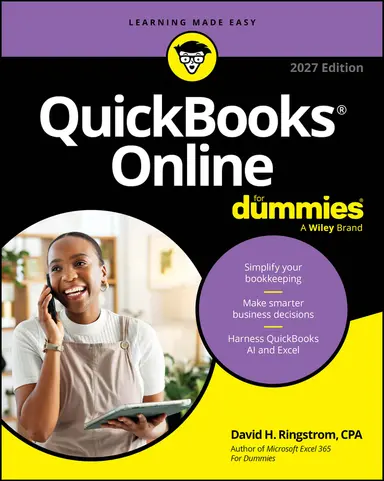
QuickBooks Online For Dummies, 2027 Edition

Overview

Get your business finances organized with QuickBooks Online the easy way

Running a business means keeping your finances in order, and cloud accounting makes that easier than ever. QuickBooks Online For Dummies, 2027 Edition walks you through every feature of this popular platform with friendly, step-by-step guidance. Whether you're setting up QuickBooks Online for the first time or looking to get more out of your subscription, you'll find everything you need right here.

From choosing the right subscription plan to creating invoices, recording sales receipts, paying bills, and understanding key features including AI, this guide has you covered. You'll get the hang of tracking your business checkbook and credit cards, processing payroll, preparing tax returns, and generating financial reports. Plus, you'll pick up handy tips for job estimating, billing, budgeting, and backing up your data.

Inside:

  • Learn how to set up inventory items and manage credit memos to keep your accounts running smoothly
  • Discover tools for balancing accounts and building budgets that help you make smarter financial decisions
  • Create professional invoices, track payments, and record sales receipts with easy-to-follow instructions
  • Explore payroll processing features and simplify your payroll tax return preparation step by step
  • Find tips for printing checks, tracking credit cards, and backing up all your important financial data

Whether you're a business owner, manager, or employee using QuickBooks Online for the first time or looking to sharpen your skills, this friendly guide puts cloud accounting at your fingertips from any device.

Read More

About The Author

David H. Ringstrom, CPA, is an author, educator, and consultant specializing in Microsoft Excel and QuickBooks. He is the author of 11 books, including Microsoft 365 Excel For Dummies. He teaches webinars for business professionals and develops Excel curriculum for college students.

Read an Excerpt

Excerpt Index
Table of Content
Excerpt Chapter 1
This is some text inside of a div block.
quickbooks online for dummies 2025 edition

CHEAT SHEET

This cheat sheet is here to make your life simpler. To make the most of your work in QuickBooks Online, use the handy and time-savings shortcuts and toolbar buttons offered here. Also, find a useful chart that covers QuickBooks Desktop conversions and details on uploading payroll history.

HAVE THIS BOOK?

Articles from
the book

Keyboard shortcuts can help you save time. By using keyboard shortcuts, you can keep your hands on the keyboard when you enter information in QBO or QBOA. Mac users, substitute Option for Alt in the following tables. To Press Open the Check window Ctrl+Alt+W Open the Expense window Ctrl+Alt+X Open the Estimat
In QuickBooks Online (QBO), at the top of the window, tools are available to help you find your way. You can view recent transactions or search for transactions, create transactions, or perform other actions not related to transactions. Be aware that, if you’re working in QBOA and you open a QBO company, the tools vary somewhat.
Accountants often need to reclassify transactions, examine voided and deleted transactions, write off invoices, and perform other activities. QuickBooks Online Accountant (QBOA) contains tools to make performing these activities easy.To view and use the tools QBOA makes available to accountants, open any client QBO company.
Before diving into using the QuickBooks Online Accountant (QBOA) tools available while you work in a client’s QBO company, take a look at the Work page in the Navigation pane, which functions as a practice management tool. Having such a tool in QBOA enables you to centralize practice management, because all team members in your firm have access to the Work page in QBOA.
You can use the Customers, Vendors, and Employees pages in QuickBooks Online (QBO) in a variety of ways. The Contractors page is more limited than the rest; from it, you can search for contractors and prepare 1099s. From the Customers, Vendors, or Employees pages that list all the people in those categories, you can sort the people in the list, export the list to Excel, and perform actions on a selected group of people on the list.
The Products and Services list is the QuickBooks Online (QBO) equivalent to the QuickBooks Desktop product’s Items list. You display the Products and Services list by choosing Gear→Products and Services. In the following figure, the compacted view of the list is shown so that you could see more products; you select the compacted view from the table gear on the right side of the page.
This cheat sheet is here to make your life simpler. To make the most of your work in QuickBooks Online, use the handy and time-savings shortcuts and toolbar buttons offered here. Also, find a useful chart that covers QuickBooks Desktop conversions and details on uploading payroll history.
You can make the most of your work in QuickBooks Online (QBO) and QuickBooks Online Accountant (QBOL) using handy and time-savings shortcuts and tool buttons. Using QBO keyboard shortcuts means that you can seamlessly access various windows and pages without touching a mouse. The various icons at the top of the QBO page help you quickly search for items, create new items, or display transactions.
When you first see your company in QuickBooks Online, your Dashboard page contains boxes with links to options you can use to set up features in QBO that are important to you. You can use those links and set up those options during setup, or you can wait until later.To hide the options, click Hide in the upper right corner of the box.
https://cdn.prod.website-files.com/6630d85d73068bc09c7c436c/69195ee32d5c606051d9f433_4.%20All%20For%20You.mp3

Frequently Asked Questions

No items found.