

Your computer is secretly a timepiece, offering you the date and time. Windows itself displays the date and time, which you can set yourself, manually. To set the date and time on your PC:
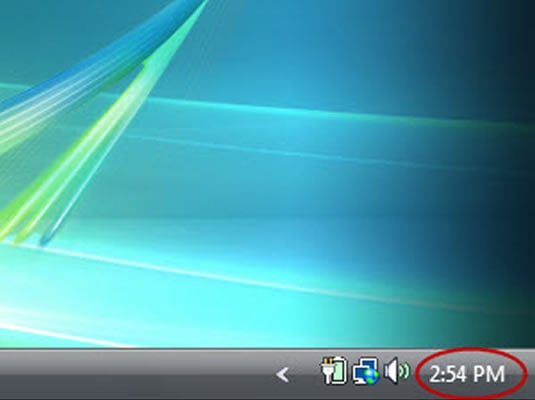
Right-click the time display in the Notification Area.
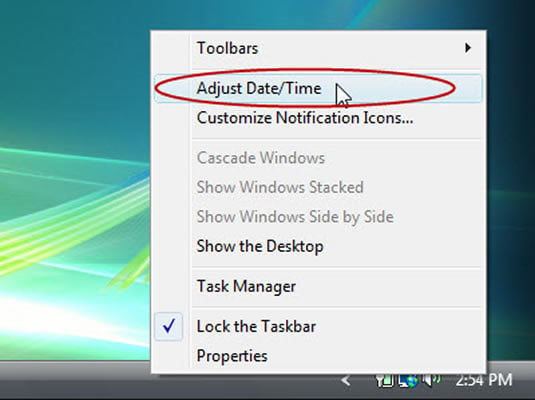
A pop-up menu appears.
From the pop-up menu, choose the command Adjust Date/Time.
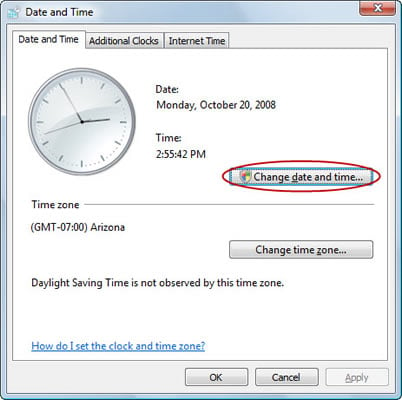
The Date and Time Properties dialog box appears.
Click the Change Date and Time button.
Changing the time requires administrator approval.
If you’re logged in as an administrator, just click the Continue button; otherwise, type an administrator password to continue.
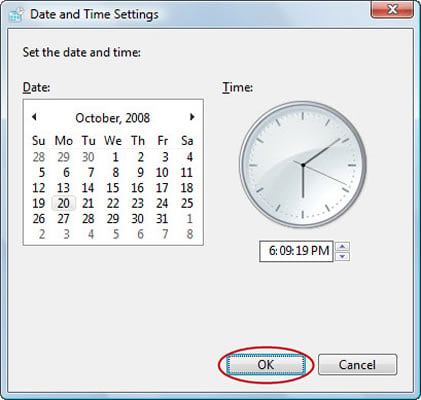
Manipulate the controls in the Date and Time Properties dialog box that appears to change or set the date or time.
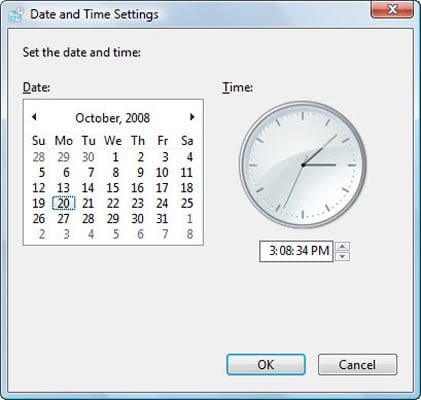
Set up the time to a few minutes ahead because you don’t initialize the new time until you click OK.
Click OK when the time is right.
Your computer clock is up and running! (How accurately it runs is another matter.)