
One of the most useful Kindle Paperwhite features is the built-in dictionary. The dictionary is easy to access and makes it swift and painless to find the definition of an unknown word.
To display a dictionary definition of a word, long-tap (that is, tap and hold) a word. The selected word is highlighted as white text on a black background. When you release your finger, a short dictionary definition for the word appears onscreen in a pop-up box. To clear the definition, tap anywhere outside the pop-up box or simply tap the X in the upper-right corner.
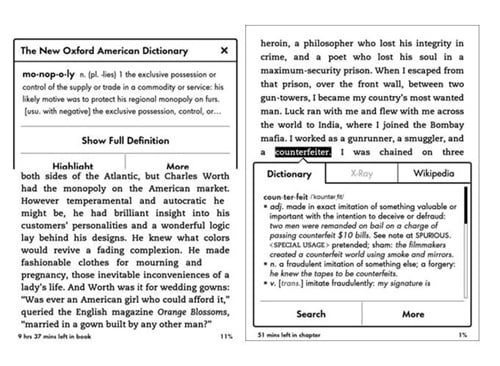
As shown on the left in the figure above, if you want to know more, tap Show Full Definition and a dictionary page opens with the full dictionary information for the word. Press the Back icon on the toolbar to return to your text.
From the definition box, you can also highlight the word. This highlights it on the screen and also saves it in your Notes & Marks file. To access this file, from the book, tap Menu→View Notes & Marks. Tap the Back icon to return to the text of your book.
In the definition box on the second-generation Kindle Paperwhite (as shown on the right in the figure above), note two additional tabs: X-Ray and Wikipedia. Tap X-Ray to display additional information about the selected word. Likewise, if your device is not in Airplane mode, you can tap Wikipedia to open a Wikipedia page with information about your selected word. Note that the information provided by the three resources may be similar.
X-Ray is not active in all books nor is it active for all words. When this is the case, the option will appear dimmed.
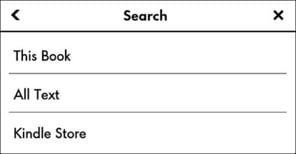
At the bottom of the second-generation Kindle Paperwhite definition box are two additional choices: Search and More. Tap Search to display the menu shown in the following figure. You have three choices: This Book searches for the word in the current book, All Text searches for the word on your Kindle Paperwhite, and Kindle Store finds all titles that have the word — it doesn't search for every instance of the word in the Kindle Store!
The definition box also includes a More button. Tap that button to display the screen.
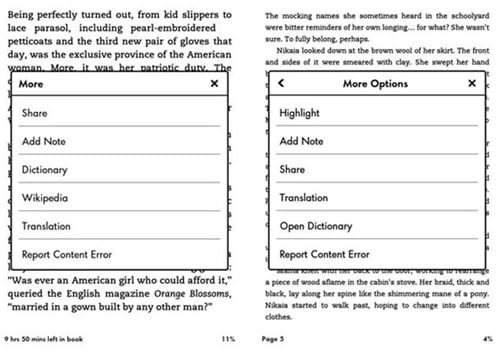
Depending on the version of Kindle Paperwhite you own, you have the following options:
Highlight: Highlight the word on the screen. Note that once the word is highlighted, the choice on the More Options menu changes to Delete. This option deletes the highlighting, not the word.
Share: Share the word (and any commentary you want to include) on Goodreads (this applies to the second-generation Kindle Paperwhite) and, if you want, Facebook and Twitter. Let your friends know how smart you are!
Add Note: Add a note regarding the word. The note will be included in your Notes & Marks file.
Dictionary: Get the dictionary definition of the word, same as before.
Wikipedia: View the Wikipedia entry, which provides a more detailed discussion of the word, not just the definition. Note that the wireless must be on to display Wikipedia entries.
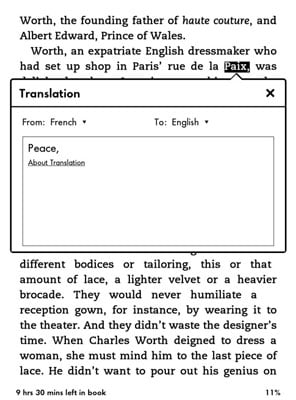
Translation: Translate the word from English to one of 16 other languages, including Chinese, Hindi, and Norwegian. You can also translate from other languages to English. For example, if the book has a Spanish phrase, you can find out want it means. The Kindle Paperwhite will even determine the source language for you.
Open Dictionary: Open the default dictionary at the definition of the word. In this way, you can read a more detailed definition or navigate quickly to linked entries.
Report Content Error: Report errors, such as typos, formatting, or other problems directly to Amazon. Is a word misspelled or is incorrect punctuation used? Here's your chance to report it. Amazon has made a concerted effort to have publishers correct errors in their Kindle Editions so that readers receive the highest quality books available.
The Kindle Paperwhite has two dictionaries: the default, New Oxford American Dictionary and Oxford Dictionary of English (both from Oxford University Press). You can change the default dictionary as follows:
Tap Menu→Settings.
Tap Device Options→Language and Dictionaries→Dictionaries.
The active dictionary appears.
Tap the active dictionary to change to a different dictionary.
A list of available dictionaries stored on the device appears.
Change the default dictionary by tapping the radio button on the right.
The radio button that is darkened (filled in) indicates which dictionary is selected as the default.
Stored in your Kindle Library at your Amazon account are several foreign language dictionaries, including Spanish, French, and Portuguese. You can have any of these dictionaries delivered to your Kindle Paperwhite. If you change the language, the corresponding language dictionary becomes the default. Note that you won't see the dictionaries if you look at the Cloud on your Kindle Paperwhite; you have to go to your Kindle Library.