


When you have an idea of what you want to put in your profile's Summary and Basic Information sections, it's time to go into LinkedIn and plug that data into the correct fields. When you're ready, follow these steps:
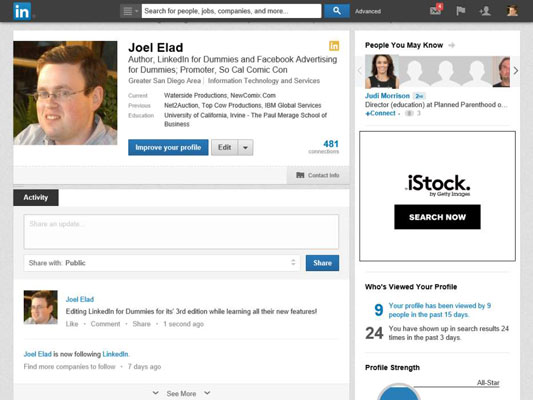
Go to LinkedIn and log in. Click the Profile link in the top navigation bar.
 LinkedIn and log in. Click the Profile link in the top navigation bar.">
You’re taken to the profile page.
Click the Edit button, then scroll down to the Summary section and click the Add Summary link below the Summary section header.
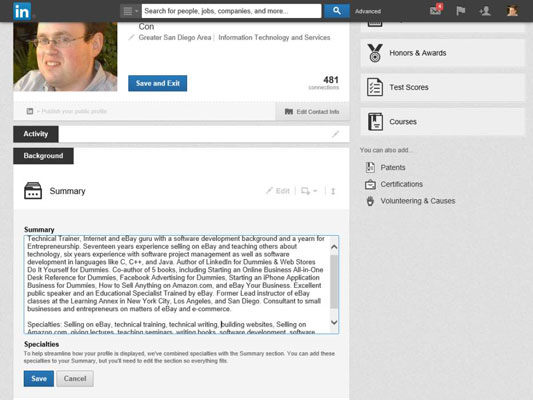
You see the Professional Summary page.
In the Summary text box, enter a paragraph or two that sums you up professionally.
You’re limited to 2,000 characters, but keep your text concise and focused.
In the same box, enter your skills and/or specialties as a separate list.
Separate each item with a comma and don’t put any punctuation after the last item in your list. You don’t need to press Enter/Return between skills.
Click the blue Save button to save your summary.
You’re taken back to your profile page. Next, you need to update the Basic Information section of your LinkedIn profile.
Click the Edit link (it looks like a pencil) next to your name to update your name.
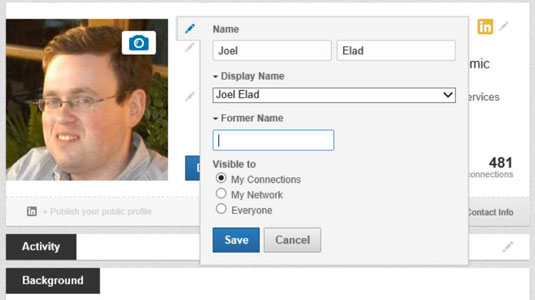
You now see the Edit Your Profile Name box.
In the Edit Your Profile Name box, double-check your name and add any maiden or former name in the text box provided. Decide whether you want your display and former/maiden names visible to just your connections, your extended network, or everyone on LinkedIn. When you're done, click the blue Save button.
If you want to maintain a higher level of privacy for your profile, you can choose the Display Name option by clicking the drop-down arrow next to the Display Name box so only your first name and last initial appear on your public profile. If you select that option, your first-degree connections see your full name, but the general public sees only your first name and last initial.
Click the Edit link next to your headline to enter your professional headline (___your main job title).
You can put any job title here, but make sure it conveys your main role as you want others to see it. When you’re done, click the blue Save button.
Click the Edit link next to your Location and Industry line to update your location and select the industry you most associate with your career.
You can choose from more than 140 designations, so take a few moments to scan the list. Note that some of the industries listed are more specific than others. You want to pick the best match possible. For example, if you create custom graphics for websites, you could select Internet as your industry, but an even better choice would be Online Media.
Click the Save and Exit button.
You’re taken back to your profile page. You’ve now covered the core of your LinkedIn profile.


