
If you bought your Kindle Paperwhite through Amazon, it's delivered to you already registered. However, if you bought the Kindle Paperwhite from a store (such as Target, Staples, or Best Buy) or received it as a gift, you need to register it.
If you need to register your device, you'll see the screen after you've set up Wi-Fi.
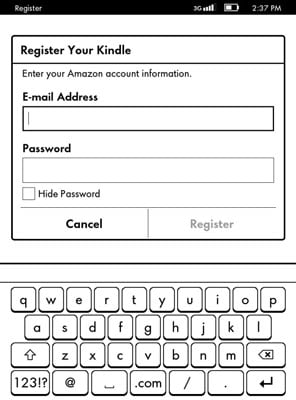
If you have an Amazon account, tap the Use an Existing Amazon Account option. Enter your Amazon account e-mail and password. (The Kindle Paperwhite inputs its own serial number, so you don't need to enter it.) Tap Submit.
If you don't have an Amazon account:
Tap Create a New Account.
Choose Country or Region from the menu that appears and then tap Continue.
Enter your full name, your e-mail address, and a password. Confirm the password and then tap Create Account.
Enter a payment method and billing address.
You need to set up a payment method for your account to purchase from the Kindle Store. The payment method can be a credit card or a gift card purchased from Amazon.
Tap Continue Setup.
If you have social networks associated with your Amazon account, you'll be asked to verify that you want to connect those to your Kindle. You'll also have an opportunity to set parental controls. You can do both activities later.
That's it! You can now buy books and other content from Amazon and have them delivered wirelessly to your Kindle Paperwhite. If you've purchased content while waiting for your Kindle Paperwhite to arrive, those e-books will appear on the Home screen after the wireless is turned on and the device registers itself.
After the registration process is complete a short tutorial will begin, showing you the basics of navigating the touchscreen. Don't worry if you forget some of the details they present.
When the tutorial finishes, you see the Home screen, which lists a welcome letter, the Kindle User's Guide, and two built-in dictionaries: the New Oxford American Dictionary and the Oxford Dictionary of English. Any content you have purchased will also be displayed.
If you ever need to de-register and then re-register your device, the following steps will guide you through the process.
Make sure the wireless is turned on.
Tap Menu->Settings→Registration.
When you tap Registration, if your Kindle Paperwhite is already registered, you will see a warning that you are about to deregister your Kindle Paperwhite. Tap Cancel to stop this process.
Choose to register using an existing Amazon account.
Enter your Amazon login credentials (your account e-mail and password), and tap Submit.