

To avoid having to click your touchpad too often, you can use your keyboard to move the cursor instead of moving your mouse with your hand, or you can activate a window by hovering your mouse over it rather than clicking.
From the Control Panel, choose Ease of Access and then click the Change How Your Mouse Works link. The Make the Mouse Easier to Use dialog box opens.
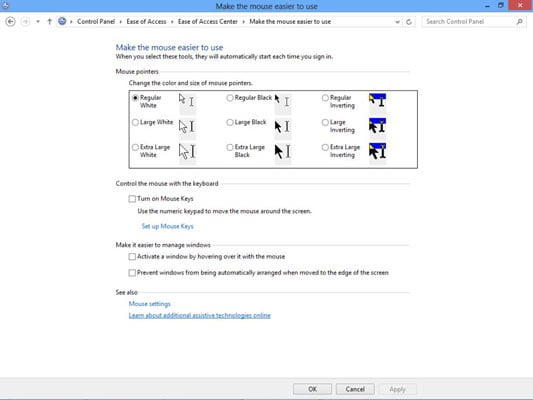
To use the numeric keypad to move your cursor on your screen, choose the Turn on Mouse Keys setting. If you turn this feature on, click Set Up Mouse Keys to fine-tune its behavior.
Select the Activate a Window by Hovering Over It with the Mouse check box to enable this (pretty self-explanatory!) feature.
Click OK to save the new settings and then click the Close button to close the Ease of Access Center.
If you’re left-handed, click the Mouse Settings link in the Make the Mouse Easier to Use window; then, on the Buttons tab, use the Left-handed button to make the right mouse button handle all the usual left-button functions, such as clicking and dragging, and the left button handle the typical right-button functions, such as displaying shortcut menus.
This helps left-handed people use the mouse more easily. If you use your computer a lot, it’s also recommend that you swap these settings occasionally to avoid carpal tunnel issues.
If you want to modify the behavior of the pointer, from the Control Panel, choose Hardware and Sound→Mouse. In the Mouse Properties dialog box that appears, click the Pointer Options tab to set the pointer speed, activate the Snap To feature that automatically moves the cursor to the default choice in a dialog box, or modify the little trails that appear when you drag the pointer.
Although some laptop keyboards have separate number pads, many have them embedded in the regular keyboard to save space. Using these embedded keys requires that you press the Fn key on the keyboard and then the letter key where the number you want is embedded. (The numbers are usually included on the key in a different color, such as red or blue.)
If your touchpad isn’t working well for you, consider buying a wireless mouse, similar to the one you use with your desktop computer. You simply plug a transmitter into a USB port on your laptop, and the mouse is active. When using a standard mouse you might want to invest in a mouse pad with a wrist rest to reduce strain that can lead to carpal tunnel syndrome.