

From the Control Panel, choose Ease of Access and then click the Change How Your Keyboard Works link.
A dialog box will appear.
In the resulting Make the Keyboard Easier to Use dialog box, make any of these settings:
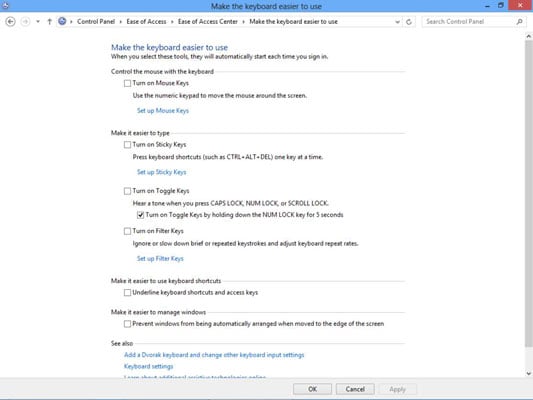
Turn on Mouse Keys: Select this option to control your cursor by entering keyboard commands. If you turn on this setting, click the Set Up Mouse Keys link to specify settings for this feature.
Turn on Sticky Keys: Select this option to enable keystroke combinations (such as Ctrl+Alt+Delete) to be pressed one at a time, rather than simultaneously.
Turn on Toggle Keys: You can set up Windows to play a sound when you press Caps Lock, Num Lock, or Scroll Lock.
Turn on Filter Keys: If you sometimes press a key very lightly or press it so hard that it activates twice, you can use this setting to adjust repeat rates to adjust for that. Use the Set Up Filter Keys link to fine-tune settings if you make this choice.
Make It Easier to Use Keyboard Shortcuts: To have Windows underline keyboard shortcuts and access keys wherever these shortcuts appear, click this setting.
Make It Easier to Manage Windows: If you want to avoid windows shifting automatically when you move them to the edge of your screen, use this setting.
To save the new settings, click OK, and then click the Close button to close the Ease of Access Center.
You can click the Learn about Additional Assistive Technologies Online link at the bottom of the keyboard settings window to go to the Microsoft website and discover add-on and third-party programs that might help you if you have a visual, hearing, or input-related challenge.
Keyboards all have their own unique feel. When you buy a laptop, it’s important to try different keyboards to see whether one works better for you than another.