
-
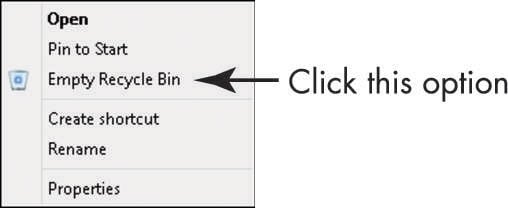
Right-click the Recycle Bin icon on the Windows Desktop and choose Empty Recycle Bin from the menu that appears.
-
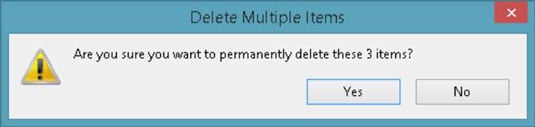
In the confirmation dialog box that appears, click Yes. A progress dialog box appears, indicating the contents are being deleted.
After you empty the Recycle Bin, all files that were in it are unavailable to you.
Up until the moment you permanently delete items by performing the preceding steps, you can retrieve them from the Recycle Bin by double-clicking the Recycle Bin Desktop icon. Select the item you want to retrieve and then click the Restore the Selected Items link on the Manage tab of the Recycle Bin ribbon.
You can modify the Recycle Bin properties by right-clicking it and choosing Properties. In the dialog box that appears, you can change the maximum size for the Recycle Bin and whether to immediately delete files you move to the Recycle Bin. You can also deselect the option of having a confirmation dialog box appear when you delete Recycle Bin contents.