

 Main Menu
Book & Article Categories
- Main Menu
Book & Article Categories
- Main Menu
Collections
Explore all collections
Articles & Books From Computers
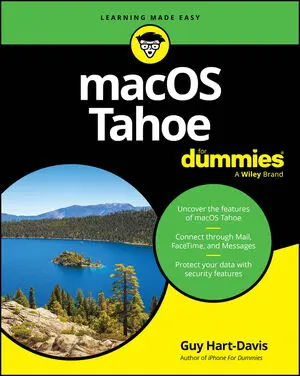
Get up to speed on the latest macOS updates and features macOS Tahoe For Dummies is your up-to-date guide to the operating system that brings your Mac computer to life. Experienced macOS expert and educator Guy Hart-Davis walks you through a comprehensive set of instructions for navigating your Mac's features and capabilities.

It's never too late to become a Mac expert! Every year, hundreds of thousands of seniors choose to use Mac products—like the MacBook Air and iMac—to connect with their loved ones, access the web, and make their lives easier. And even if you've never used a Mac before, we're here to show you how you can make the most of it—one easy step at a time!

A deep dive into the Windows, for beginners and advanced users alike Windows 11 All-in-One For Dummies, 2nd Edition is your most thorough source of information on the world's #1 computer operating system. This 800+ page reference guides you through the art of navigating the Windows interface, setting up personal accounts, and digging into the menus, settings, and features that you need to become a power user.

The top-selling Windows book for the older and wiser crowd Windows 11 For Seniors For Dummies, 2nd Edition delivers fluff-free information on making the latest version of Windows work for you. You'll get clear guidance on the basics, troubleshooting tips, and advice for staying safe while you use Windows to get online.

Become a tech-savvy computer user, the beginner-friendly way Computers For Seniors For Dummies gives you the confidence you need to connect with friends and explore the internet all from the comfort of your couch. This step-by-step guide walks you through the basics of buying and setting up a computer, working with Windows or Mac, and getting online.
Cheat Sheet / Updated 11-13-2024
Whether it’s a desktop the family uses, an office computer, or a liberating laptop you can take with you around the globe, everyone loves to cheat! Specifically, you may find it beneficial to print and save this bonus information to assist you with your beloved computer. Call it helpful hints, but For Dummies tradition labels this document a Cheat Sheet — once a $2.

Learn the ins and outs of macOS with the top-selling Dummies guide macOS 2025 For Dummies is here to help you get acquainted with the operating system that makes your Mac computer go. Get easy-to-follow instructions for doing everything you need and taking advantage of the hottest features. If you've just jumped on the Mac bandwagon, veteran macOS writer Guy Hart-Davis shows you how to get started with Desktop and Finder.

A one-stop guide to making the most of your desktop PC or laptop computer PCs and Laptops For Dummies is the essential user's guide to the features your PC or laptop has to offer—and how to use them successfully. With this book as your coach, you can jump over technological hurdles with ease, navigating the hardware and software of your personal computer.

Take control of your Windows 11 experience, the easy way With millions of copies sold over 18 editions, Windows For Dummies is the all-time best selling tech reference—and there’s a reason. Windows 11 For Dummies, 2nd Edition brings you up to speed on the latest version of Windows, so you can make your PC operate the way you need it to with no guesswork.
Cheat Sheet / Updated 11-04-2024
Six years after saying Windows 10 was the “last” version of Windows, Microsoft released Windows 11 on October 5, 2021. Fast forward three years, and Microsoft has unveiled the second iteration, dubbed Windows 11 2024 Update. Discover tips to help you work with the latest edition of Windows, Windows 11, as well as shortcuts to work more quickly and efficiently.

