

 Main Menu
Book & Article Categories
- Main Menu
Book & Article Categories
- Main Menu
Collections
Explore all collections
Articles & Books From Programming & Web Design
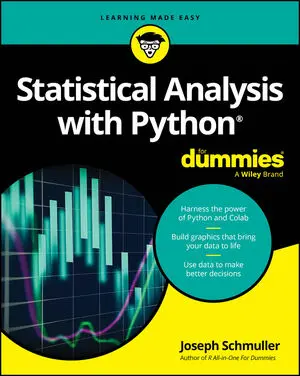
Wrangle stats as you learn how to graph, analyze, and interpret data with Python Statistical Analysis with Python For Dummies introduces you to the tool of choice for digging deep into data to inform business decisions. Even if you're new to coding, this book unlocks the magic of Python and shows you how to apply it to statistical analysis tasks.

Streamline Your Workflow and Boost Productivity with Python Automation In today's workplaces, there's a high demand for know-how on the Python programming language, especially for writing time-saving scripts that can simplify routine work tasks. Python Automation For Dummies delivers, with simple explanations of how you can use Python to automatically wrangle data files, manage media files, create shortcuts, find and organize web data, and even analyze social media for trends.
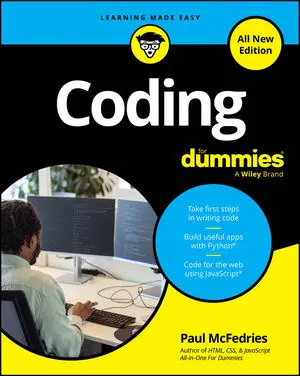
Your first step toward thinking like a coder Coding For Dummies is one of the most popular get-started guides for new coders. This all- new edition demystifies essential coding concepts before diving into building simple apps in Python and JavaScript. For anyone brand-new to writing code, this book is an ideal first step, because you'll get an overview of how coding works, the essential tools of coding, and how to apply coding in different ways.
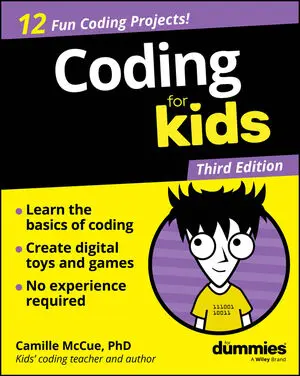
It's never too early to learn how to code! Coding For Kids For Dummies helps you learn the basics of coding the fun way. This book walks you through the essentials of coding with 12 exciting projects. You'll learn what coding is, how to make digital toys and games on your computer, and how to start writing your first lines of code!

Learn the essentials of creating web apps with some of the most popular programming languagesPHP, MySQL, & JavaScript All-in-One For Dummies bundles the essentials of coding in some of the most in-demand web development languages. You'll learn to create your own data-driven web applications and interactive web content.
Cheat Sheet / Updated 06-27-2025
Working with PHP, MySQL, and JavaScript to create dynamic web applications can be difficult, but if you know a few programming tricks, you can make that job a lot easier. This Cheat Sheet shows you how to extract data from different databases in your PHP programs, filter out unwanted or potentially dangerous data from web forms, quickly find data stored in your MySQL database, and trigger timed events in your JavaScript programs.
Cheat Sheet / Updated 06-16-2025
R provides a wide array of functions to help you with statistical analysis with R—from simple statistics to complex analyses. Several statistical functions are built into R and R packages. R statistical functions fall into several categories including central tendency and variability, relative standing, t-tests, analysis of variance and regression analysis.

Simplify stats and learn how to graph, analyze, and interpret data the easy way Statistical Analysis with R For Dummies makes stats approachable by combining clear explanations with practical applications. You'll learn how to download and use R and RStudio—two free, open-source tools—to learn statistics concepts, create graphs, test hypotheses, and draw meaningful conclusions.
Article / Updated 04-28-2025
For enterprises whose growth depends on the innovation of their developers and data scientists, success moves at the speed of their development environments. Efficiency, effectiveness, and the ability to build without friction — that’s what sets the pace.The question is simple enough: Do your developers and data scientists work their magic in cloud development environments (CDEs), or is their work bogged down by a legacy development environment?

The quick and crystal-clear guide to C++ programming C++ Essentials For Dummies is your useful reference to the key concepts of C++, the popular general-purpose language utilized everywhere from building games to writing parts of operating systems. With minimal review and background material—and absolutely no fluff—this book gets straight to the essential topics you need to know to ramp up, brush up, or level up.

